When ideas and demand already live in Aha!, pull them into Zentrik Discovery so you prioritize and synthesize next to calls, tickets, and docs, without maintaining two parallel backlogs by hand.
Zentrik connects with your Aha! subdomain and an API key saved once per workspace. Zentrik imports ideas with their votes and comments, and never changes anything in Aha!.
If you are replacing Aha! rather than running both, Zentrik and Aha! compared shows what moves over, what to check first and what each costs.
Connect Aha!
Admins add Aha! from Settings → Integrations. Use the subdomain that appears before .aha.io in your Aha! URL to identify the account Zentrik should import from.
Subdomain & API key
- In Aha!, create or locate an API key with access to the ideas you want to import.
- Note your subdomain (for example,
acmeforacme.aha.io). - In Zentrik → Settings → Integrations → Aha!, paste subdomain and API key.
- Save the connection.
Zentrik does not show the key again after save.
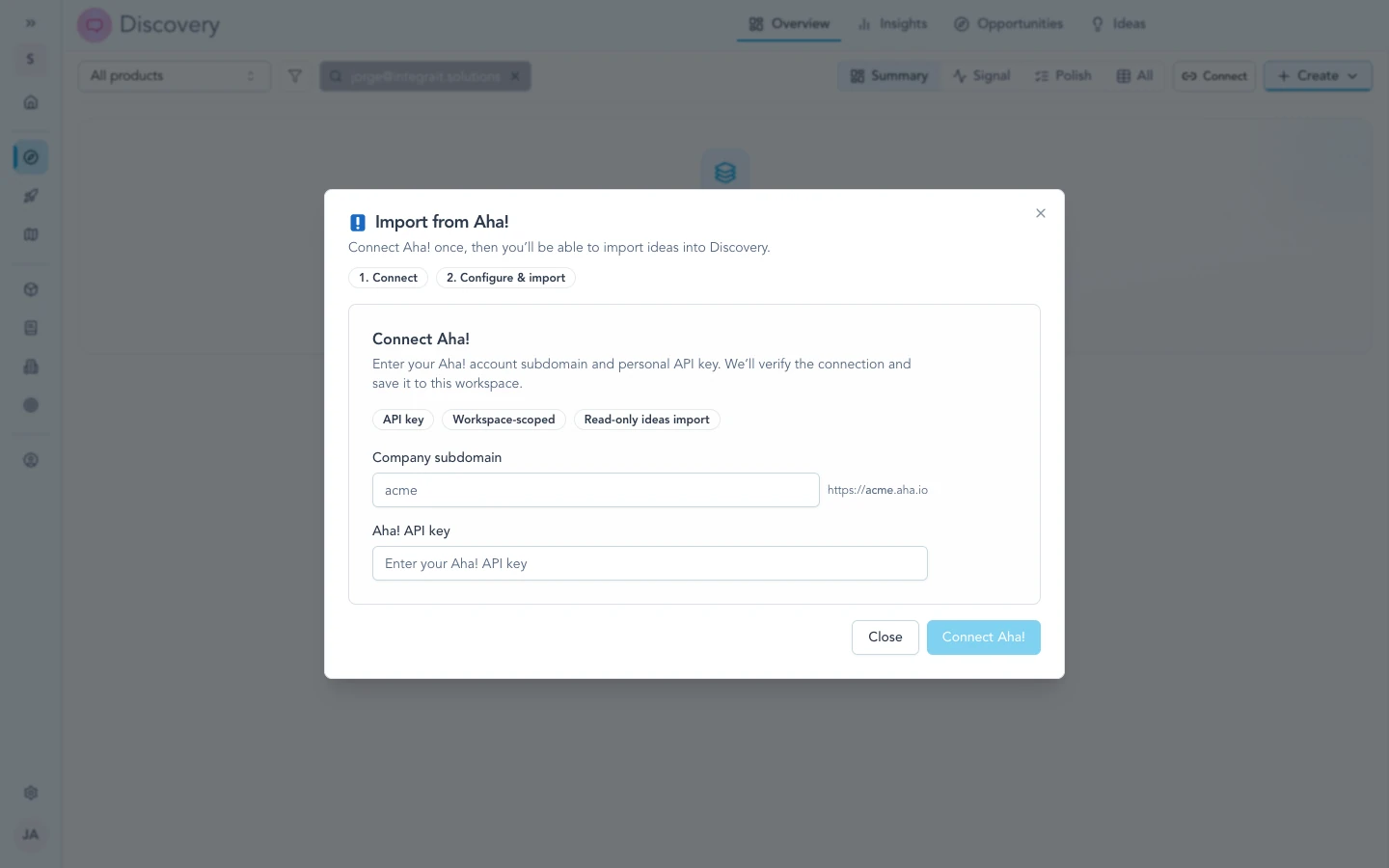
After the workspace stores your Aha! subdomain and API key, authorize the import flow to pull ideas into Discovery.
How to use it
Import Aha! ideas into Discovery, where they sit beside calls, tickets, and docs.
Import ideas
- Open Discovery → New → Bring in evidence… and choose Aha!.
- Choose the Aha! product and the Zentrik product. Filter by workflow status or dates to import a subset.
- Map each Aha! workflow status to a Zentrik status, and categories or custom fields to idea properties.
- Keep Import related Aha! votes on. Link voters to accounts ties votes to the accounts you imported from Accounts → Import → Aha! idea organizations.
- Import.
Each idea arrives with the person who asked for it and its portal and internal comments, labelled by where they were written. A proxy vote keeps its amount, opportunity link, and reason, and the reason joins the idea's comments. The amount informs the idea's value, never the account's ARR.
Zentrik saves the mapping for the next import and the daily scheduled import, and a re-import updates what it brought before. Ideas keep their Aha! reference numbers, and a Zentrik ideas portal shows only the ones Aha! shows to everyone.
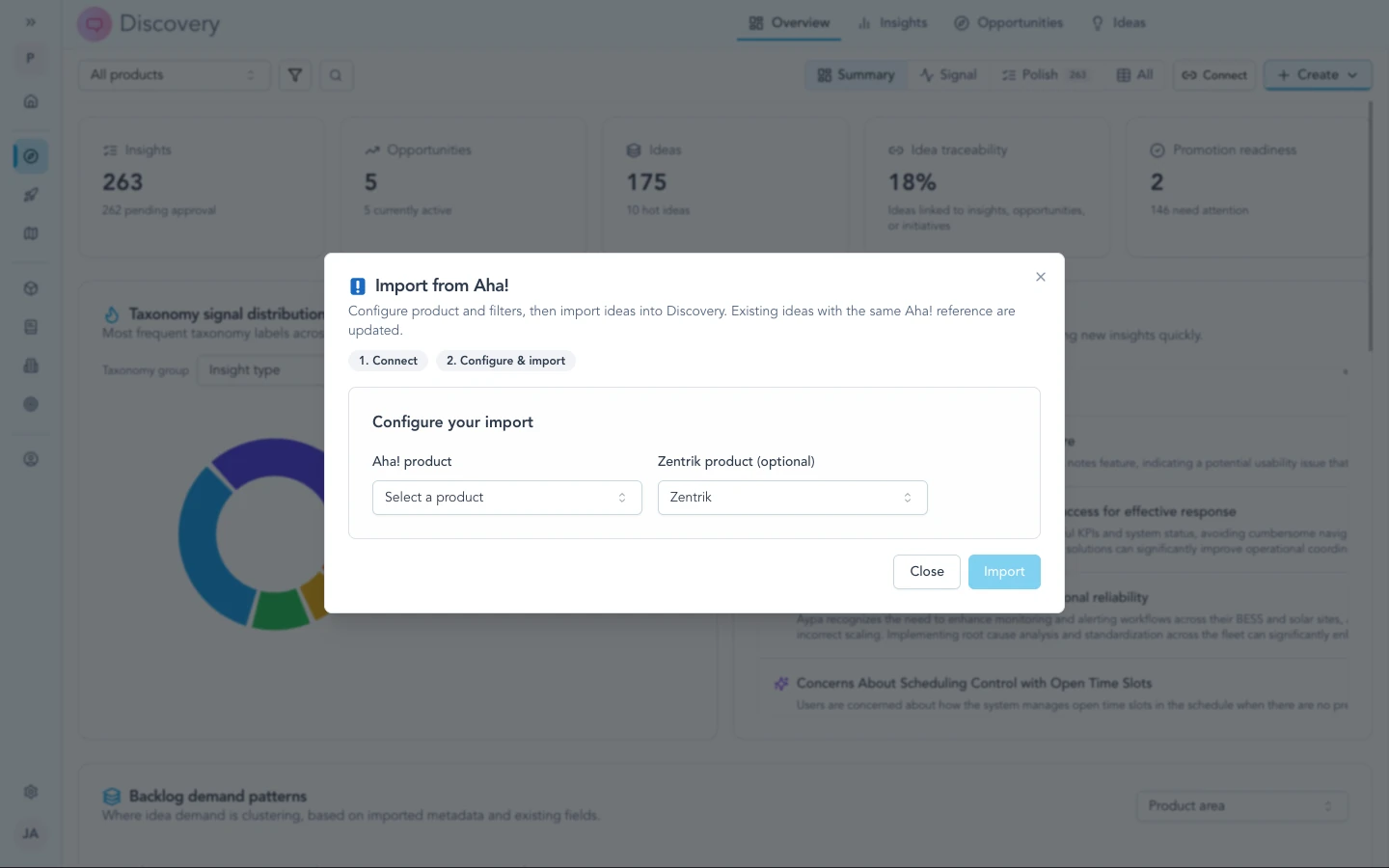
Pick the ideas or scope you need before they land as structured signal in Discovery.
Match workspace members
Workspace owners and admins can open Settings → Members → Sync with integrations and choose Aha!. Zentrik proposes exact email matches first, then exact names only when the match is unambiguous. Review or clear the selected rows before saving.
This links existing identities only. It does not invite workspace members or change Aha! users.
For workspace admins
- Treat the API key like a password. Rotate it in Aha! if someone leaves or a key may have leaked, then update Zentrik so imports keep working.
- Remove the integration in Zentrik when you no longer want automated access to Aha!.
Troubleshooting
Check credentials and permissions on both sides first. If you have verified everything and it still fails, contact us with your workspace name and what you tried.
Credentials rejected
In Aha!, confirm the API key is valid and can read the ideas you need. Regenerate if unsure, paste into Settings → Integrations → Aha! in Zentrik, and save.
Wrong Aha! workspace
The subdomain ties Zentrik to one Aha! account. Disconnect and add the integration again with the subdomain and key for the account you meant.
Still stuck
Contact us and we will help.
Continue from here
Related guides
Did this guide answer your question?
Your response helps us prioritize missing or unclear documentation.
Still stuck?
Send your question to Zentrik support. This guide will be included automatically.