Review Granola notes and transcripts, then bring the relevant meetings into Discovery as traceable evidence.
An owner or admin connects Granola for the workspace. That connection supports shared review and repeatable imports from shared Granola folders.
Anyone who can import can also add their own personal access from the import dialog when private notes are missing. Personal access is used only for that user's one-time reviews; scheduled imports never use it.
If the same note is available through both connections, Zentrik shows it once. Imported notes keep their Granola source.
Before you connect
Choose the simplest access that covers the meetings you need:
- Shared folders that should keep flowing into Zentrik: use the workspace connection and a saved import.
- Private notes you want to choose manually: add personal access in the Granola import dialog.
- A mix of both: keep the workspace connection and add personal access. Zentrik shows overlapping notes once.
Before connecting:
- Confirm the relevant notes are visible through the connection you plan to use.
- Confirm your team may bring those conversations into Zentrik.
- Decide whether the source should run repeatedly or remain a one-time review.
Connect Granola
Create the integration in Settings → Integrations → Granola and paste a Granola API key from a Granola user who can see the shared folders your product team should import.
Workspace connection key
- In the Granola app, open Preferences → Connectors → Personal API keys.
- Create an API key with note access.
- Use a Granola account that can see the shared folders this Zentrik workspace should use.
- In Zentrik, open Settings → Integrations → Granola.
- Paste the API key and save.
The connection belongs to the Zentrik workspace even though Granola issues the key to a Granola user. Use a stable account whose shared-folder access will not disappear when team responsibilities change.
Zentrik does not show the key again after save. If it may have been exposed, rotate it in Granola and update the connection in Zentrik.
Granola reference: Granola API documentation.
Personal access
- In the Granola app, open Preferences → Connectors → Personal API keys.
- Create an API key with Personal notes access.
- In Zentrik, open Discovery → New → Bring in evidence… → Calls and meetings → Granola.
- Choose Add my notes, paste the key, and select Add access.
Your personal notes appear only in your one-time reviews. Workspace folder filters do not restrict personal results, and saved imports never use personal access.
Disconnecting personal access removes those notes from your future reviews. It does not affect the shared workspace connection.
How to use it
Use a one-time review when you want to choose individual meetings. Use a saved import when shared folders should continue flowing into Discovery.
Review and import notes
- Open Discovery → New → Bring in evidence… → Calls and meetings → Granola.
- Choose a date range of up to 31 days.
- Optionally choose workspace folders or add personal access for private notes.
- Keep Save customer attendees as People on when Zentrik should organize reliably external attendees by email.
- Optionally choose Create missing Accounts from company domains. Leave it off to keep unmatched People unassigned.
- Select Load preview.
- Review the unique results and their access source. Already-imported notes are marked.
- Preview a note when you need to confirm it contains useful product signal.
- Select up to 100 ready notes and choose Import N notes.
Imported notes keep a link to Granola when one is available.
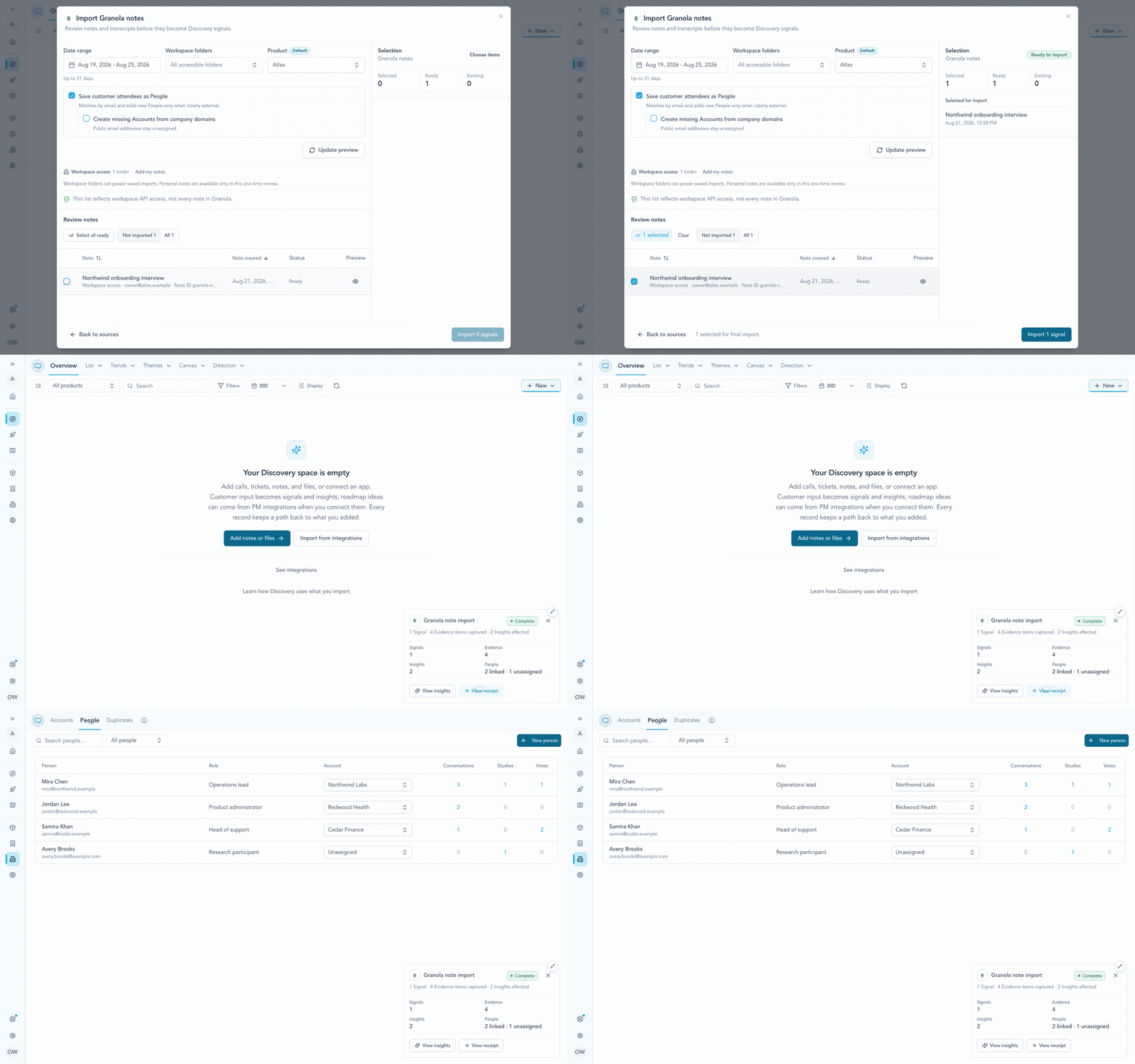
A selected Granola note becomes traceable evidence while reliably external attendees join the same People history used across Zentrik.
Run a saved import
Use a saved import only for shared Granola folders that should run repeatedly:
- Open Settings → Integrations → Granola.
- Under Saved imports, create or open an import.
- Choose one or more shared Granola folders and the destination product.
- Choose whether to save reliably external attendees as People and, separately, whether a professional company domain may create a missing Account.
- Save and test the draft, then activate it.
- Choose On demand or set an interval. To import new notes as soon as Granola finishes their summary, enable Live arrival on the Granola connection and set this import to Arrive live.
Each Granola note has one stable source identity across saved imports, manual reviews, reconnections, and API-created Granola signals. When a public note ID and a legacy desktop ID differ, Zentrik reuses an existing signal only through an exact stored ID or exact Granola note URL; it does not guess from a title, attendee domain, or meeting time. Unchanged notes are reported as unchanged. If Granola content or the destination policy changes, Zentrik refreshes the existing signal instead of creating a duplicate. Personal notes remain available through one-time review only. Existing saved imports that were configured for exact Contact matching keep that behavior until an admin edits them.
Import new notes as they finish
Enable Live arrival on Settings → Integrations → Granola. Zentrik registers the webhook with Granola and listens for a finished summary or newly granted access. Each active import checks its selected folders before it imports a note. A note outside those folders is skipped.
Granola webhook access requires a Business or Enterprise plan. If your account cannot create a webhook, keep the saved import on a schedule.
You do not need to select Run now for a new call when its import is set to Arrive live. Keep a schedule if you want Zentrik to check for missed notes. Live arrival starts with notes Granola reports after the webhook is enabled; use Run now or a schedule to bring in older notes.
For workspace admins
- Workspace access supports team review and saved imports from shared folders.
- Personal access expands one-time review only for the user who added it.
- Imported personal notes become shared workspace evidence, so reviewers should select only conversations the workspace may retain.
- “All” means all notes visible through the selected workspace or personal access, not every note in Granola.
Troubleshooting
Check credentials and permissions on both sides first. If you have verified everything and it still fails, contact us with your workspace name and what you tried.
Zentrik cannot connect the API key
Confirm the key is active in Granola, includes access to notes, and was copied without spaces. Then save the integration again.
A note is missing from the import list
Confirm the selected Granola access can see the note, use a date range of 31 days or less, and clear any workspace-folder selection. If the note is private, add the appropriate personal key.
I need to import a long history
Review the history in consecutive date ranges. Zentrik marks previously imported notes and safely skips duplicates. For ongoing intake, move the repeatable source into shared Granola folders and use a saved import.
The preview is empty
Refresh the list and try again. If the note still has no summary or transcript text, wait for Granola to finish processing it.
Continue from here
Related guides
Did this guide answer your question?
Your response helps us prioritize missing or unclear documentation.
Still stuck?
Send your question to Zentrik support. This guide will be included automatically.